Category: Home Office

Desk setup, cable management, and compact work-from-home products.
  • The Grand Convergence: How Smart Homes and Remote Work Redefined Living in 2026

    The Grand Convergence: How Smart Homes and Remote Work Redefined Living in 2026

    Sleek, ultra-modern Scandinavian-style home office in 2026 with smart ambient lighting, curved monitor, and minimalist desk

    For years, technology analysts spoke of the “home of the future” as a collection of disjointed gadgets: voice assistants that could play music, lightbulbs that changed colors on command, and smart refrigerators that theoretically knew when you were out of milk. But in 2026, the narrative has shifted fundamentally. The smart home is no longer a collection of novelties. It has evolved into a unified, proactive ecosystem that serves as the critical infrastructure for both daily living and professional life.

    As remote and hybrid work models have solidified into the standard operating procedure for global business, our homes have taken on a dual identity. They must simultaneously serve as a peaceful sanctuary for family life and a high-performance, distraction-free environment for professional output. The response to this challenge has been the Grand Convergence: a merging of consumer smart technology, enterprise-grade connectivity, localized artificial intelligence, and environmental health science to create the ultimate work-from-home (WFH) experience.

    In this deep-dive guide, we will explore the major smart home and remote work trends of 2026. We will look at how agentic AI, unified networking standards, and health-focused automations are transforming how we design our workspaces and live our lives—and how you can implement these technologies to elevate your own daily routine.


    1. The Intelligent WFH Sanctuary: Designing the Ultimate Productivity Space

    The days of working from a kitchen table or a cluttered corner in the bedroom are long gone. In 2026, remote workers design their offices as dedicated productivity sanctuaries. The technology within these spaces is designed to be invisible yet highly responsive, adjusting the ambient environment in real-time to match the worker’s cognitive needs and daily calendar.

    Circadian Lighting and Adaptive Environments

    One of the most significant breakthroughs in WFH design is the integration of dynamic, circadian lighting. We have known for years that lighting color temperature and intensity directly impact focus and energy levels. In 2026, smart home office lighting is completely automated to align with your biological clock and work schedule:

    • Morning Focus (8:00 AM – 11:30 AM): The system automatically adjusts overhead panels and desk light bars to a bright, cool white light (around 5,000K to 6,000K) at high intensity. This suppresses melatonin production and boosts cortisol, helping you wake up and tackle deep work blocks.
    • Afternoon Warmth (1:30 PM – 5:00 PM): As the day progresses, the lighting shifts to a softer, neutral white (around 3,500K to 4,000K) to maintain focus without causing the sensory fatigue associated with prolonged exposure to harsh blue light.
    • Evening Wind-Down (5:30 PM onwards): Once your work day ends, the office transition light switches to a warm, low-intensity amber (2,200K to 2,700K). This signals to your brain that it is time to transition from “employee” back to “homeowner,” facilitating a natural wind-down.

    Camera-Ready Meeting Automations

    Video conferencing remains the primary medium of professional connection, but the stress of preparing your workspace for a call is a thing of the past. In 2026, your home office integrates directly with your digital calendar and communication tools (such as Slack, Teams, or Zoom) to automate “Meeting Mode”:

    Real-World Scenario: It is 10:00 AM, and you have a client presentation. As the calendar event approaches, your smart desk lamp slowly turns on, angling a soft diffusive light toward your face to eliminate harsh shadows. Your primary computer monitors dim slightly to reduce glare, and the smart motorized blinds adjust to prevent backlighting. Outside your door, a small status light turns red, signaling to family members or roommates that you are active in a meeting. Once the call ends, the room smoothly transitions back to its standard focus setup.

    Ergonomic Automation

    Ergonomics in 2026 goes beyond static chairs and desks. Smart standing desks now use presence sensors and gentle prompts to encourage movement. Rather than forcing you to remember to stand, the desk communicates with your fitness wearables. If it detects that you have been sitting with a high heart rate or for more than 50 consecutive minutes, the desk will subtly adjust its height by a fraction of an inch to prompt you to shift your posture, or elevate to a standing position between scheduled meetings.


    2. The Agentic Core: How Matter 2.0 and Local AI Are Revolutionizing Connectivity

    Modern cozy living room with a person working on a laptop, warm ambient lighting, and a minimal wall-mounted smart home display showing predictive data

    Behind these seamless automation experiences is a massive shift in how smart home systems communicate and process data. The fragmented ecosystems of the early 2020s—where users had to manage separate apps for lighting, security, and climate control—have been replaced by a unified, intelligent framework powered by the **Matter protocol** and **local Edge AI**.

    The Maturation of the Matter Protocol

    The standard protocol for smart homes has reached absolute maturity in 2026. The newest iterations of Matter ensure that hardware compatibility is no longer an obstacle. A light sensor from one manufacturer, a smart blind controller from another, and a thermostat from a third all speak the same language locally. They communicate directly over a Thread mesh network without needing custom cloud integrations or proprietary bridges. For the remote worker, this translates to unmatched system reliability and sub-millisecond response times.

    The Rise of Local-First Edge AI

    Perhaps the most critical technological leap in 2026 is the transition from cloud-reliant AI services to **Local-First processing**. In previous years, every voice command or automation trigger had to travel to a remote server, process, and send a command back to the house. This introduced latency, relied on a stable internet connection, and raised massive privacy concerns—especially for remote workers handling sensitive corporate data.

    In 2026, high-performance smart hubs run local, lightweight Large Language Models (LLMs) directly on your home network. This provides three major advantages:

    Benefit How it Works in 2026
    Absolute Privacy Conversations, calendar schedules, and sensor logs are processed entirely inside the house. No audio snippets or video feeds are sent to external cloud servers, satisfying strict corporate compliance requirements.
    Zero-Latency Execution Because data does not travel to the cloud and back, commands execute instantly. You ask your assistant to “mute the background music and prepare the lighting for a client presentation,” and it happens in a fraction of a second.
    Offline Resilience If your primary internet service provider suffers an outage, the local AI agent, Matter sensors, and automation schedules continue to function perfectly. The home remains smart even when the cloud is unreachable.

    Intelligent Network Prioritization

    Remote workers cannot afford network lag, dropouts, or bandwidth starvation because someone else in the house is streaming high-resolution media or downloading a heavy file. Next-generation routers utilize localized AI to dynamically partition bandwidth. The router recognizes traffic patterns: it prioritizes video call packets, VPN connections, and active database transfers on WFH devices, while gently throttling background updates or entertainment traffic during working hours. When 5:00 PM hits, the bandwidth allocation shifts back to a balanced, household-wide profile.


    3. Holistic Well-Being: Air Quality, Climate, and Circadian Health

    One of the hidden dangers of remote work is the psychological and physical strain of spending long, uninterrupted hours in a single indoor environment. Without the natural breaks of a commute, walks to meetings, or stepping out for lunch, remote workers are highly susceptible to fatigue, eye strain, and poor air quality. The 2026 smart home approaches this holistically, actively monitoring and adjusting the home’s climate to optimize cognitive performance and long-term health.

    Active Air Quality Management and Cognitive Performance

    Did you know that high levels of Carbon Dioxide (CO2) in a closed room can degrade cognitive function by up to 50%? In a typical sealed home office, CO2 levels can easily spike past 1,200 parts per million (ppm) within two hours of closed-door meetings. This leads to that familiar mid-afternoon brain fog, sluggishness, and minor headaches.

    In 2026, smart indoor air quality monitors track CO2, volatile organic compounds (VOCs), and fine particulate matter (PM2.5) in real-time. If the CO2 level in your office climbs past 800 ppm, the system triggers the home’s ventilation system, such as an Energy Recovery Ventilator (ERV), to draw in fresh, filtered air from the outside while expelling stale indoor air. It does this quietly, ensuring the fan noise never disrupts your calls.

    Microclimate Zoning

    Traditional heating and cooling systems operate on a single thermostat, meaning you either heat the entire house or freeze in the office. Modern smart home designs employ motorized smart dampers and ambient temperature sensors to create distinct thermal microclimates. The system knows you are working in the office from 9 to 5, so it diverts conditioned air specifically to that room. This keeps you perfectly comfortable at your desk while reducing energy use in unoccupied areas of the house, like bedrooms or the living room.

    “By focusing climate control only on active WFH zones during the day, homeowners reduce their daily heating and cooling energy usage by up to 35%, proving that productivity and environmental sustainability can go hand-in-hand.”


    4. The Sustainable WFH Ecosystem: Smart Energy & Resilience

    Sleek, minimalist wall-mounted home battery storage system with a digital smart energy dashboard showing clean energy flow


    With remote work keeping computers, multi-monitor setups, network infrastructure, and climate control running all day, home energy bills have risen significantly. At the same time, grid stability has become a concern in many regions. The response in 2026 has been a massive surge in home microgrids and sustainable energy management.

    Home Microgrids and Battery Backups

    For a remote professional, a power outage isn’t just an inconvenience; it represents lost billable hours, missed meetings, and damaged credibility. Because of this, modern home designs integrate solar arrays with advanced battery storage systems. These battery walls act as intelligent home microgrids. They are designed to monitor grid health and transition instantly to battery power in the event of an outage. This transfer occurs in under 10 milliseconds—so fast that your desktop computer, mesh router, and active monitors never even flicker.

    AI-Driven Energy Arbitrage

    The energy systems of 2026 do more than just store power; they play the energy market to save you money. Through a process called **energy arbitrage**, the smart home’s central AI agent monitors real-time electricity rates from your utility provider and cross-references them with weather forecasts:

    1. Solar Generation: During peak daylight hours, the solar panels power your home office and charge the battery storage.
    2. Predictive Charging: If the weather forecast predicts a cloudy afternoon, the system charges the batteries during the early morning hours when grid rates are lowest.
    3. Grid Disconnection: During peak demand hours (typically late afternoon and early evening), when grid rates skyrocket, the smart home automatically disconnects from the grid, running the entire house off the stored battery power. This shields the homeowner from peak pricing structures.

    5. Step-by-Step Guide: Building Your 2026 Smart WFH Setup

    Building a modern, integrated environment does not require you to tear down your walls or spend a fortune overnight. The key is to build systematically, prioritizing the core infrastructure first and layering intelligent devices on top as your needs evolve. Here is a practical roadmap to get you started:

    Step 1: The Foundation (Network & Hub)

    Before buying any smart lights or sensors, you must ensure your network can handle the load. A weak network is the single most common cause of smart home failures.

    • Invest in a Wi-Fi 6E or Wi-Fi 7 Mesh System: This ensures dedicated wireless bands for your high-speed work devices, leaving the standard bands for smart home accessories.
    • Choose a Local Hub: Select a hub that emphasizes local control (such as a Home Assistant Green, Apple TV 4K with Thread, or a next-generation SmartThings hub). Avoid hubs that require an internet connection for basic automations.

    Step 2: Productivity & Lighting

    Once your network is stable, focus on the elements that directly impact your daily focus and meetings.

    • Install Matter-Certified Smart Lighting: Look for light strips and overhead bulbs that support dynamic color temperature adjustment.
    • Add a Smart Light Bar: A monitor-mounted light bar reduces eye strain by casting light downward onto your workspace without reflecting glare off your screen.
    • Integrate a Presence Sensor: A millimeter-wave (mmWave) presence sensor is far more accurate than standard motion sensors. It can detect you even if you are sitting perfectly still at your desk, ensuring your lights never turn off while you are reading a document.

    Step 3: Indoor Climate and Air Quality

    Focus on your physical comfort to protect your health during long work sessions.

    • Add a Dedicated Air Quality Monitor: Place a sensor on your desk at breathing height to monitor CO2 and PM2.5 levels.
    • Install Smart Vents or Dampers: Pair these with your thermostat to redirect airflow to your office space during working hours, ensuring your workspace remains comfortable without wasting energy on the rest of the house.

    Step 4: Resilience and Security

    Finally, build out the infrastructure that keeps you safe and online during emergencies.

    • Install a Smart UPS (Uninterruptible Power Supply): If a whole-house battery wall is out of your budget, place a dedicated UPS under your desk to power your router, modem, and primary computer. This guarantees you remain connected during sudden dropouts.
    • Implement Network Segmentation: Use your router to create a separate VLAN (Virtual Local Area Network) for your smart home devices. This isolates your IoT products from your work computer, keeping corporate data completely secure from potential smart home vulnerabilities.

    Conclusion: The Future is Responsive

    The transformation of the smart home in 2026 reflects a deeper shift in how we relate to technology. We are moving away from an era where we had to adapt to our gadgets, clicking through apps and configuring complex rules. Instead, we have entered the era of the responsive home—an environment that understands our context, respects our privacy, protects our health, and supports our productivity.

    By designing a workspace that integrates circadian lighting, local processing, clean air, and energy resilience, you aren’t just buying gadgets. You are investing in your professional output, your physical well-being, and a more balanced lifestyle. The smart home is no longer just a place to live; it is a partner in your career.

  • 5 Best Under Desk Ellipticals for Seniors in 2026 (Safe & Effective)

    5 Best Under Desk Ellipticals for Seniors in 2026 (Safe & Effective)

    Disclosure: As an Amazon Associate, I earn from qualifying purchases. This article includes affiliate links, which means I may earn a commission if you buy through them, at no extra cost to you.

    Senior using an under desk elliptical comfortably at home

    Browse under desk elliptical for seniors on Amazon

    Staying active is one of the most important factors for maintaining health, mobility, and independence as we age. However, traditional exercise equipment like treadmills or upright stationary bikes can be intimidating, hard on the joints, or pose a fall risk. This is where the under desk elliptical becomes a game-changer for seniors. By providing a low-impact cardiovascular workout while safely seated, these compact machines allow older adults to keep their blood flowing, burn calories, and strengthen leg muscles without the stress on knees and hips.

    For seniors, the best under desk elliptical must meet specific criteria: it needs to have a smooth, fluid motion, a highly visible and easy-to-read display, and most importantly, it must be stable so it does not slide away during use. After extensive research and reviewing countless user experiences, we have compiled a list of the top under desk ellipticals specifically tailored for the needs of older adults.


    Quick Comparison

    Product Best Feature Resistance Levels Link
    Cubii JR1 Seated Under Desk Elliptical Best Overall / Smoothest Motion 8 Levels Check Price
    DeskCycle 2 Under Desk Bike Pedal Exerciser Highest Quality / Whisper Quiet 8 Levels Check Price
    LifePro FlexStride Pedal Exerciser Best Value & Portability 8 Levels Check Price
    Sunny Health & Fitness Magnetic Elliptical Best Budget Pick 8 Levels Check Price
    Stamina InMotion E1000 Best for Standing or Seated Use Adjustable Dial Check Price

    1. Cubii JR1 Seated Under Desk Elliptical (Best Overall)

    The Cubii JR1 is widely considered the gold standard of under desk ellipticals, and it is exceptionally well-suited for seniors. Designed with ergonomics in mind, the Cubii provides a whisper-quiet, incredibly smooth elliptical motion that ensures zero impact on vulnerable knee and hip joints.

    Why it’s great for seniors:
    Unlike cheaper pedal models that have a jerky, up-and-down bicycle motion, the Cubii JR1 uses a true elliptical stride. This means seniors don’t have to lift their knees high, preventing their knees from hitting the underside of a table or desk. It is also heavy and robust (weighing nearly 30 pounds), meaning it absolutely will not slide away on hardwood floors while pedaling—a common safety concern for older users.

    • Extremely smooth and zero-impact motion.
    • Built-in LCD monitor tracks calories, strides, and distance.
    • Very stable and heavy base prevents slipping.
    • Whisper-quiet operation won’t disturb TV watching.

    View on Amazon

    2. DeskCycle 2 Under Desk Bike Pedal Exerciser (Best Quality)

    While technically a mini-bike rather than a true elliptical, the DeskCycle 2 deserves a top spot due to its unmatched build quality and incredibly smooth magnetic resistance. It features the same high-quality magnetic resistance mechanisms found in full-sized gym bikes.

    Why it’s great for seniors:
    The DeskCycle 2 has an adjustable pedal height, allowing it to drop down to 9 inches. This is perfect for seniors with limited mobility who might have trouble lifting their feet high onto pedals. Furthermore, the resistance settings are highly calibrated; setting “1” is practically zero resistance, perfect for physical therapy and gentle joint movement.

    • Unmatched, silky-smooth magnetic resistance.
    • Adjustable pedal height for easy access.
    • Large, easy-to-read LCD display.
    • Extremely durable construction.

    View on Amazon

    3. LifePro FlexStride Pedal Exerciser (Best Value)

    The LifePro FlexStride offers premium features at a more accessible price point. It comes with a lifetime warranty, which speaks volumes about the manufacturer’s confidence in their product, making it a risk-free investment for seniors.

    Why it’s great for seniors:
    This model comes fully assembled out of the box (or requires extremely minimal setup), which is a huge relief for seniors who do not want to struggle with tools and heavy lifting. It features wide, textured foot pedals to prevent slipping, and it includes a tether strap to secure it to a chair if extra stability is needed.

    • Excellent lifetime warranty.
    • Wide, anti-slip foot pedals.
    • Comes with a chair tether for maximum safety.
    • Very quiet magnetic resistance.

    View on Amazon

    4. Sunny Health & Fitness Magnetic Elliptical (Best Budget Pick)

    For those on a fixed income, Sunny Health & Fitness offers a highly effective machine that won’t break the bank. It provides a reliable cardiovascular workout without the premium price tag.

    Why it’s great for seniors:
    Despite being affordable, it does not skimp on safety. It uses a magnetic resistance system (which is safer and smoother than friction belts) and has a built-in carrying handle. While a bit lighter than the Cubii, it remains relatively stable during light to moderate use.

    • Highly affordable compared to premium brands.
    • 8 levels of magnetic resistance.
    • Convenient carrying handle for easy moving.
    • Compact footprint fits anywhere.

    View on Amazon

    5. Stamina InMotion E1000 (Best for Standing or Seated)

    The Stamina InMotion is a versatile, compact strider that has been a bestseller for years. It is unique because it is designed to be used both while seated and while standing.

    Why it’s great for seniors:
    For seniors who are undergoing physical therapy and progressing from seated exercises to standing weight-bearing exercises, this machine grows with them. When seated, it acts like a standard mini-elliptical. When they have the balance and strength, they can hold onto a chair and use it standing up for a deeper workout.

    • Dual-use design (seated and standing).
    • Adjustable tension dial allows micro-adjustments.
    • Textured pedals for secure footing.
    • Very compact and easy to store.

    View on Amazon


    Buying Guide for Seniors

    Close-up of elliptical pedals and digital display

    When selecting an under desk elliptical for an older adult, there are a few specific considerations to keep in mind to ensure safety and comfort.

    1. Smoothness of Motion (Magnetic Resistance)

    Always look for machines that specify “magnetic resistance.” Cheaper models use friction belts, which can be jerky and uneven. Jerky motions can jar the knees and cause pain. Magnetic resistance ensures the pedal stroke is perfectly smooth, which is essential for protecting aging joints.

    2. Weight and Stability

    Usually, a heavy machine is considered a drawback, but for seniors using a seated elliptical, heavy is good. A machine that weighs 20 to 30 pounds will stay planted firmly on the floor. Lighter machines will slide forward as you pedal, causing the user to constantly reach down and pull it back—a major fall risk.

    3. Elliptical vs. Bicycle Motion

    A true elliptical motion (like the Cubii) moves the feet in a long, flat oval. A bicycle motion (like the DeskCycle) moves the feet in a circle. Elliptical motions generally require less knee-lift, making them better for seniors with severe arthritis or limited hip mobility.

    4. Display Visibility

    Seniors with failing eyesight need a display that is easy to read. Some displays are quite small. If tracking metrics is important, look for models with large LCD numbers or those that sync to a smartphone app for easier viewing.


    Frequently Asked Questions

    Is an under desk elliptical safe for seniors with bad knees?
    Yes! In fact, many physical therapists recommend them. Because the user is seated, there is no body weight pressing down on the knees. It provides pure, low-impact joint lubrication and muscle engagement without the wear and tear of walking.

    Will it help with circulation?
    Absolutely. Using a seated elliptical keeps the leg muscles pumping, which actively returns blood to the heart. This helps reduce swelling in the feet and ankles and lowers the risk of blood clots from prolonged sitting.

    Do I need to plug it in?
    Most high-quality under desk ellipticals use magnetic resistance and do not need to be plugged into a wall outlet. The digital displays usually run on a small watch battery (LR44 or similar) that lasts for months or years.


    Conclusion

    An under desk elliptical is a phenomenal investment in a senior’s long-term health. It removes the barriers to exercise by allowing them to stay active while reading, watching television, or knitting. We highly recommend the Cubii JR1 for its unrivaled smoothness and stability. Remember to start on the lowest resistance setting and gradually increase activity over time. Stay safe and keep moving!

    Related home office comfort guides

  • Best Under-Desk Foot Rests for Home Office Comfort

    Best Under-Desk Foot Rests for Home Office Comfort

    Disclosure: As an Amazon Associate, I earn from qualifying purchases. This article includes affiliate links, which means I may earn a commission if you buy through them, at no extra cost to you.

    Ergonomic under desk foot rest in a home office setup

    Check under desk foot rest ergonomic memory foam on Amazon

    An under-desk foot rest can provide a stable surface when a chair is adjusted to the desk but the user’s feet do not rest comfortably on the floor. It is one part of a workstation setup and should be chosen for fit, adjustability, stability, and ease of movement.

    This guide explains when a foot rest may be useful, how to measure the available space, and how foam, rocking, and adjustable platform designs differ.

    Why You Need an Ergonomic Foot Rest

    A foot rest gives the feet a supported contact point and may make it easier to use the chair back while keeping the desk at a practical height. Comfort and posture needs vary, and a foot rest does not diagnose, prevent, or treat back pain, swelling, circulation problems, or other medical conditions.

    What to Look for in the Best Foot Rest

    When browsing for an ergonomic foot stool for your office, keep these features in mind:

    1. Foam firmness: A foam rest feels softer under bare or socked feet, but it should be firm enough not to collapse during normal use. Compare dimensions and cover care rather than assuming memory foam is best for everyone.
    2. Non-Slip Bottom: There is nothing more annoying than a foot rest that slides away on a hardwood floor. Look for one with a textured, non-slip rubberized bottom.
    3. Removable, Washable Cover: Since it lives on the floor (and you might use it with bare feet), being able to unzip the cover and toss it in the washing machine is essential.
    4. Rocking option: Some curved designs allow gentle position changes. The motion should remain controlled and should not cause the feet or chair to slide.

    Conclusion

    A well-sized foot rest can make a workstation more adaptable when the floor is too low for the current chair and desk combination. It works best alongside regular position changes, suitable chair adjustment, and a desk layout that does not force the user to reach or twist.

    Shop under desk foot rest ergonomic memory foam on Amazon

    Related home office comfort guides

    Start with Chair and Desk Height

    Adjust the chair so the keyboard and mouse can be used with relaxed shoulders and forearms supported near the working surface. If that position leaves the feet without stable support, measure the vertical distance to the floor. A foot rest should fill part of that gap without pushing the knees sharply upward or pressing behind the thighs.

    Measure the clear width and depth below the desk, including chair wheels, drawer units, and frame supports. The platform should be wide enough for both feet to change position and shallow enough that it does not block the chair from moving closer to the desk.

    Foam, Rocking, and Adjustable Platforms

    • Foam cushion: quiet and soft, but height is normally fixed and the material can compress over time.
    • Rocking rest: supports small position changes, but may be distracting or unstable for some users.
    • Adjustable platform: offers several height or angle settings and is easier to share between users, although it may require more space.
    • Fixed rigid platform: provides a predictable surface and is simple to clean, but fit depends heavily on choosing the correct height.

    Angle and Surface Grip

    An angled platform can support the feet without requiring the ankles to hold one position. If the angle is adjustable, check whether it locks or rocks freely. A textured top helps footwear remain in place, while a stable base matters on both hard floors and carpet.

    Non-slip materials still need testing on the actual floor. Dust can reduce grip, and a light foam unit may move when the user changes position. Stop using a rest that causes the chair, feet, or platform to slide unexpectedly.

    Movement Still Matters

    No foot rest makes prolonged sitting risk-free or comfortable for everyone. Change position regularly and stand or walk when appropriate for your work and health circumstances. Avoid keeping pressure behind the knees or sitting on one foot for long periods simply to reach the floor.

    Persistent pain, numbness, swelling, weakness, or circulation concerns require advice from a qualified health professional. For individual workstation needs, an occupational health or ergonomics professional can assess the complete setup rather than one accessory.

    Cleaning and Durability

    A removable washable cover is useful for foam products, but confirm the washing and drying instructions. Rigid platforms should have accessible hinges and surfaces that can be wiped without trapping dust. Inspect adjustable mechanisms, seams, and non-slip pads periodically.

    Compare the manufacturer’s stated dimensions with your measurements and read recent reviews for long-term compression, squeaks, slipping, or difficult adjustment. A return policy is particularly useful because comfort cannot be judged from dimensions alone.

    Complete the Workstation

    A foot rest addresses only lower support. Screen height, input-device placement, lighting, and cable routing also influence how easily the desk can be adjusted. Our guides to laptop stands for small desks and desk lamps for home offices cover two other common setup decisions.

  • Best Cable Management Box: How to Hide Messy Desk Cords Instantly

    Best Cable Management Box: How to Hide Messy Desk Cords Instantly

    Disclosure: As an Amazon Associate, I earn from qualifying purchases. This article includes affiliate links, which means I may earn a commission if you buy through them, at no extra cost to you.

    Cable management box hiding a power strip and messy desk cords

    Check cable management box for power strip on Amazon

    You’ve finally set up your dream home office or entertainment center. The monitor is perfectly aligned, the desk is clean… but underneath, there is a chaotic, tangled nest of power strips, chargers, and cords. Not only is it an eyesore, but it also gathers dust and can be a tripping hazard or a tempting chew toy for pets.

    A cable management box can conceal a compatible power strip and excess cable length while keeping the setup accessible. It improves appearance, but it must be sized and ventilated correctly and should never be treated as a waterproof, childproof, or pet-proof electrical enclosure.

    Why a Cable Organizer Box is a Must-Have

    • Instant Aesthetics: You don't need to spend hours zip-tying cables. You simply drop your entire power strip into the box, close the lid, and the mess magically disappears.
    • Reduced access: A lid can discourage casual contact with plugs, but the box is not a substitute for electrical safety products, supervision, or keeping liquids away from power equipment.
    • Easier Cleaning: No more trying to vacuum around a spiderweb of cords. You just dust the top of the box.

    Features of the Best Cable Management Boxes

    When browsing Amazon to hide your messy cords, look for these design elements:

    1. Aesthetically Pleasing Design: Since the box will be visible, it shouldn't look like an ugly plastic bin. Top-rated models feature sleek matte finishes (white or black) with beautiful, natural bamboo or wooden lids that blend in with home decor.
    2. Sufficient Size: Check the dimensions! You want a box large enough to comfortably fit a bulky surge protector along with massive laptop charging bricks. (Often, buying a set of large and medium boxes is the best value).
    3. Ventilation Holes: Chargers get hot. Ensure the box has slits or holes on the sides and bottom to allow heat to dissipate safely.
    4. Multiple Wire Exits: The box should have cutouts on both ends and sometimes the sides, allowing you to route cables in whichever direction you need.

    Conclusion

    Don't let a spaghetti monster of wires ruin your carefully curated room. A cable management box is a highly affordable, satisfying solution that instantly elevates the look of your space.

    Shop cable management box for power strip on Amazon

    Related desk organization guides

    Measure the Power Strip and Adapters

    Measure the complete power strip, including the plug, on/off switch, and any cable strain relief. Then place the chargers you normally use into their actual outlets and measure the total occupied width and height. Large laptop adapters can overlap neighboring sockets or sit higher than expected.

    The box should close without pressing on plugs or sharply bending cables. Allow open space around heat-producing adapters and confirm that the manufacturer’s ventilation design is suitable for the equipment you plan to place inside. If the components cannot fit comfortably, use a larger box or a different cable-routing method.

    Cable Box vs. Under-Desk Tray

    A box is usually better when the power strip stays on the floor, beside a media console, or near a nightstand. It is portable and does not require mounting hardware. An under-desk tray keeps the power strip off the floor and can reduce the number of visible cables, but installation and desk compatibility require more planning.

    For a sit-stand desk, a tray attached to the moving desktop may provide more controlled cable travel. Read our detailed guide to under-desk cable management trays before choosing between the two systems.

    Electrical and Heat Precautions

    • Follow the power strip and charger manufacturers’ ventilation and placement instructions.
    • Do not cover ventilation openings with fabric, paper, rugs, or stored objects.
    • Keep the box away from sinks, drinks, plant watering, and other sources of moisture.
    • Do not connect power strips to one another or exceed the stated electrical load.
    • Stop using damaged, loose, discolored, or unusually hot plugs and adapters.

    Periodically touch the outside of the box and inspect the equipment during normal use. If heat builds up or the equipment smells unusual, disconnect it safely and reconsider the arrangement. A closed appearance is never more important than ventilation and access.

    How to Route Cables Cleanly

    1. Unplug equipment and place the box close enough to the outlet that no cable is stretched.
    2. Route the power-strip cable through one end opening and device cables through the most direct exits.
    3. Bundle only the excess length with reusable ties, keeping bends loose near connectors.
    4. Label plugs that are frequently removed so the box does not need to be emptied.
    5. Leave the lid easy to open for inspection and access to the power switch.

    Placement Around Children and Pets

    A cable box may reduce visual interest, but ordinary lids and openings do not make electrical equipment inaccessible. Use appropriate outlet covers or other products designed for the specific hazard, supervise children and pets, and consult a qualified professional when the location presents an electrical-safety concern. Replace chewed or damaged cables immediately.

    Cleaning and Maintenance

    Disconnect power according to the equipment instructions before cleaning. Remove dust from ventilation openings and inspect the power strip, adapters, and cables. Avoid spraying cleaner into the box. As your setup changes, remove unused chargers rather than allowing the enclosure to become tightly packed.

  • Under Desk Cable Management Tray for Small Home Offices

    Under Desk Cable Management Tray for Small Home Offices

    Disclosure: As an Amazon Associate, I earn from qualifying purchases. This article uses affiliate links, which means I may earn a commission if you buy through them, at no extra cost to you.

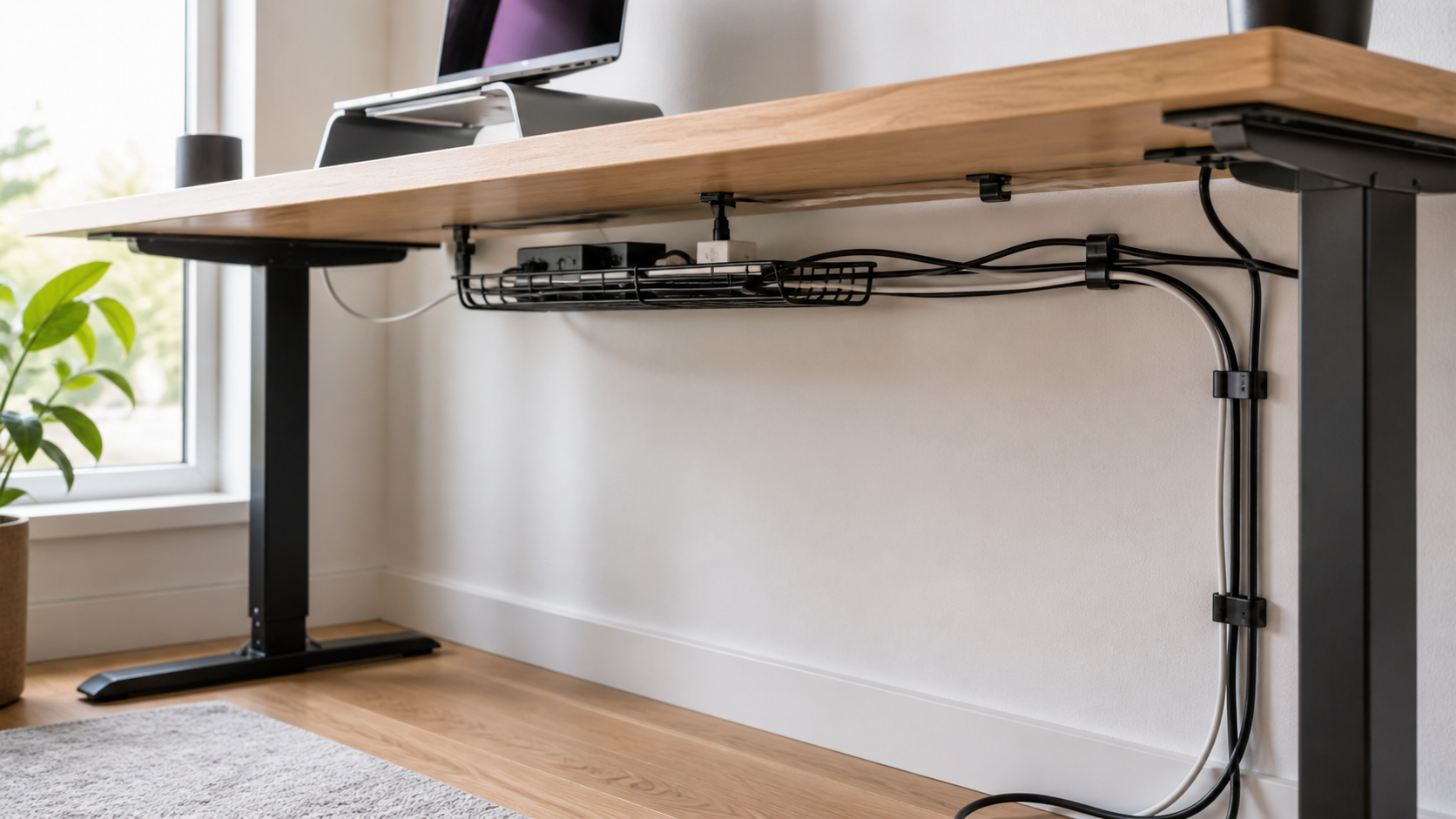
    A messy cable bundle can make even a nice desk feel unfinished. If your laptop charger, monitor cord, power strip, and USB hub all collect under your feet, an under desk cable management tray is one of the simplest upgrades you can make. It is a single product, usually mounted under the desk surface, that holds cables and a power strip off the floor so your home office looks calmer and is easier to clean.

    For small apartments, shared rooms, and compact home offices, this is especially useful. You do not need a full desk makeover. You just need a place for the cable mess to live.

    Check under desk cable management trays on Amazon

    Why an under desk cable management tray is worth it

    The best thing about this product is that it hides clutter without changing how your setup works. Your charger, power strip, monitor cable, and dock can stay plugged in. The tray simply lifts them into a cleaner, safer position under the desktop.

    That matters in a small home office because visual noise builds quickly. A clean desktop helps, but if the floor underneath the desk is crowded with cords, the whole area still feels busy. A cable tray solves the problem at the source.

    Best for small desks and apartment workspaces

    An under desk tray is a strong fit if your desk is against a wall, inside a bedroom, in a studio apartment, or in a multi-use living area. It keeps cables contained so the workspace can blend into the room instead of looking like a temporary tech station.

    It also makes routine cleaning easier. When cables are lifted off the floor, vacuuming or sweeping around the desk becomes less annoying. That sounds small, but it is exactly the kind of small-space upgrade that makes a room easier to live with every day.

    What to look for before buying

    1. Enough length for your power strip

    Before buying, measure your power strip and the space under your desk. Many trays are long enough for a standard power strip, but not all desks have the same clearance. A little measuring saves frustration later.

    2. Open design for airflow

    A tray with an open wire or ventilated design is usually easier to manage. It lets heat escape around power adapters and makes it simpler to thread cables in and out when you change your setup.

    3. Strong mounting hardware

    Look for a tray that feels sturdy and includes clear mounting hardware. If you rent or do not want to drill, check whether clamp-style options are available. If you own the desk and want the cleanest result, screw-mounted trays usually feel more permanent.

    4. Easy access after installation

    A cable tray should hide the mess, not trap it forever. Choose a design that still lets you reach plugs when you need to swap a charger, unplug a device, or reset a power strip.

    How to use it for a cleaner desk setup

    Start by unplugging everything and grouping cables by device. Place the power strip inside the tray first, then route each cable toward the device it powers. Use small hook-and-loop ties if you need to shorten extra cable length. Avoid pulling cables too tight, because a little slack makes future changes easier.

    If you already liked our guide on cable management ideas for a cleaner desk setup, this is the product that makes those ideas easier to maintain. Cable clips and sleeves help, but the tray gives the whole system a home.

    Who should skip it?

    This product may not be ideal if your desk has very thin material, unusual metal framing, or no clear mounting area underneath. It may also be unnecessary if you only use one laptop charger and nothing else. But if your desk has a monitor, lamp, dock, printer, speakers, or multiple chargers, the tray quickly becomes useful.

    SEO-friendly quick recommendation

    For most small home offices, choose a medium-length under desk cable management tray with an open design, sturdy mounting, and enough space for one power strip plus extra cable length. It is not the flashiest desk accessory, but it is one of the most practical.

    Bottom line: if you want one affordable product that makes a desk look cleaner fast, an under desk cable management tray is a smart place to start.

    Browse under desk cable management trays on Amazon

    FAQ

    Is an under desk cable management tray hard to install?

    Most are simple to install, but the difficulty depends on your desk and mounting style. Clamp-on trays are usually easier. Screw-mounted trays often look cleaner but take a little more time.

    Can I put a power strip in a cable tray?

    Many people use cable trays for power strips, but always follow the product instructions and avoid overcrowding adapters. Leave enough space for airflow and easy access.

    Will it work with a standing desk?

    Yes, but make sure the cables have enough slack for the desk to move up and down safely. A cable tray can be very helpful on standing desks because it keeps cords from dragging.

    Related desk organization guides

  • Cable Management Ideas for a Cleaner Desk Setup

    Cable Management Ideas for a Cleaner Desk Setup

    Affiliate disclosure: As an Amazon Associate I earn from qualifying purchases. This guide uses affiliate links to Amazon.com.

    Good cable management makes a desk easier to clean, keeps charging cords within reach, and reduces accidental pulling on plugs. The goal is not to hide every wire; it is to create clear routes that remain safe and easy to change when equipment moves.

    The simple cable cleanup system

    1. Group cables by device.
    2. Hide the power strip.
    3. Lift extra cable length off the floor.
    4. Label cables you unplug often.

    Cable management box

    A cable box hides the power strip and bulky adapters. It works best beside a desk, TV stand, or nightstand where the power strip cannot be mounted underneath.

    Search cable management boxes on Amazon

    Under-desk cable tray

    A tray is better than a box when your power strip stays under the desk. Look for metal construction, strong clamps or screws, and enough width for larger adapters.

    Search under-desk cable trays on Amazon

    Adhesive cable clips

    Cable clips keep charging cords from sliding to the floor. They are cheap, small, and easy to place near the edge of a desk or nightstand.

    Search adhesive cable clips on Amazon

    Reusable cable ties

    Reusable hook-and-loop ties are better than zip ties for a desk setup because you can change the layout later. They are also useful for travel bags and drawers.

    Search reusable cable ties on Amazon

    FAQ

    Is a cable box or cable tray better?

    Use a box when the power strip sits on the floor or beside furniture. Use a tray when the power strip can live under the desk.

    How do I make cable management look clean?

    Keep cables in straight runs, bundle extra length, and avoid mixing black and white cords in visible areas when possible.

    Related desk organization guides

    Map the Cable Route Before Attaching Anything

    Unplug nonessential equipment and place every device where it will normally be used. Identify the outlet, power strip, and the point where each cable reaches the desk. Keep power cables and frequently handled charging leads in separate groups so one can be moved without disturbing the other.

    Leave a small service loop near monitors, laptops, and adjustable arms. A cable pulled completely tight can stress a connector when the screen or desk moves. Extra length should be bundled in a loose loop and supported in a tray rather than hanging from the port.

    Cable Safety and Airflow

    • Do not place a power strip inside a sealed container unless the product and its instructions allow that use.
    • Keep adapters and power supplies away from liquids, fabric piles, and places where heat cannot escape.
    • Never route a cable where a chair wheel, door, or desk mechanism can pinch it.
    • Replace damaged cables instead of hiding worn insulation inside a sleeve.
    • Follow the power strip manufacturer’s load limits and avoid connecting power strips to one another.

    Fixed Desks and Sit-Stand Desks Need Different Plans

    For a fixed desk, the shortest clean route usually runs from the desktop to a tray or power strip mounted beneath it, then down one desk leg to the wall outlet. A sit-stand desk needs enough slack for its full travel. Raise and lower the desk while watching every cable before fastening the final bundle.

    Mount the computer and power strip to the moving part of the desk when practical so fewer cables need to flex. Keep one controlled vertical bundle for the connection to the wall and make sure it cannot catch on drawers or frame components.

    Using Adhesive Clips Without Damaging Surfaces

    Clean the mounting area and let it dry completely before applying adhesive. Test a hidden area first, especially on painted, veneered, or delicate furniture. Clips work best for light charging cables; a heavy power strip or large adapter should use hardware designed for its weight.

    Plan the position before removing the backing because repeatedly lifting an adhesive pad weakens it. Leave the adhesive undisturbed for the curing time specified by its manufacturer before loading the clip.

    Label Cables at the Useful End

    Label cables near the power strip when several similar plugs need to be disconnected. Labels such as monitor, lamp, laptop dock, and speaker are more useful than device model numbers. At the desk edge, small clips can keep only the charging leads used every day accessible while the rest remain below.

    Maintain the Setup

    Check the cable route whenever a device is added or removed. Remove abandoned chargers, wipe dust from the power area, and confirm that ties are not crushing cables. A system that can be opened and changed is more useful than a perfect-looking bundle that has to be cut apart.

  • Best Desk Organization Products for Small Home Offices

    Best Desk Organization Products for Small Home Offices

    Affiliate disclosure: As an Amazon Associate I earn from qualifying purchases. This guide uses affiliate links to Amazon.com.

    A small home office gets messy quickly because every item is close to your hands: cables, chargers, notebooks, coffee, headphones, receipts, pens, and the tools you use between meetings. The best desk organization products are not the fanciest accessories. They are the pieces that remove daily friction, make your workspace easier to clean, and help you reset the desk in less than two minutes.

    This guide is the main Intuit Chaos hub for small home office desk organization. If you are starting from zero, begin here, then use the related guides for deeper decisions on cable trays, cable boxes, foot rests, lighting, and movement-friendly desk upgrades.

    Quick picks by problem

    • Visual clutter: start with a monitor stand with storage or a desktop file sorter.
    • Cables under the desk: use an under-desk tray and route only the cables you truly need.
    • Power strip mess: use a cable management box on the floor or side table.
    • Back and leg comfort: add an ergonomic foot rest before buying another chair.
    • Reading or evening work: choose a warm rechargeable book light or compact desk lamp.

    The best order to organize a small home office

    Most people buy desk organizers in the wrong order. They start with trays and containers, then discover that the biggest problem is actually cable routing, monitor height, or a lack of reach zones. A better system is to organize by function.

    1. Clear the surface first. Remove everything that does not need to live on the desk every day.
    2. Lift the screen. A monitor stand creates storage underneath and improves posture.
    3. Route power once. Decide where the power strip should live, then hide the excess cable length.
    4. Create a daily reset zone. Keep notebooks, pens, and small tools in one predictable place.
    5. Add comfort last. Once the desk is clear, add a foot rest, lamp, or under-desk movement tool.

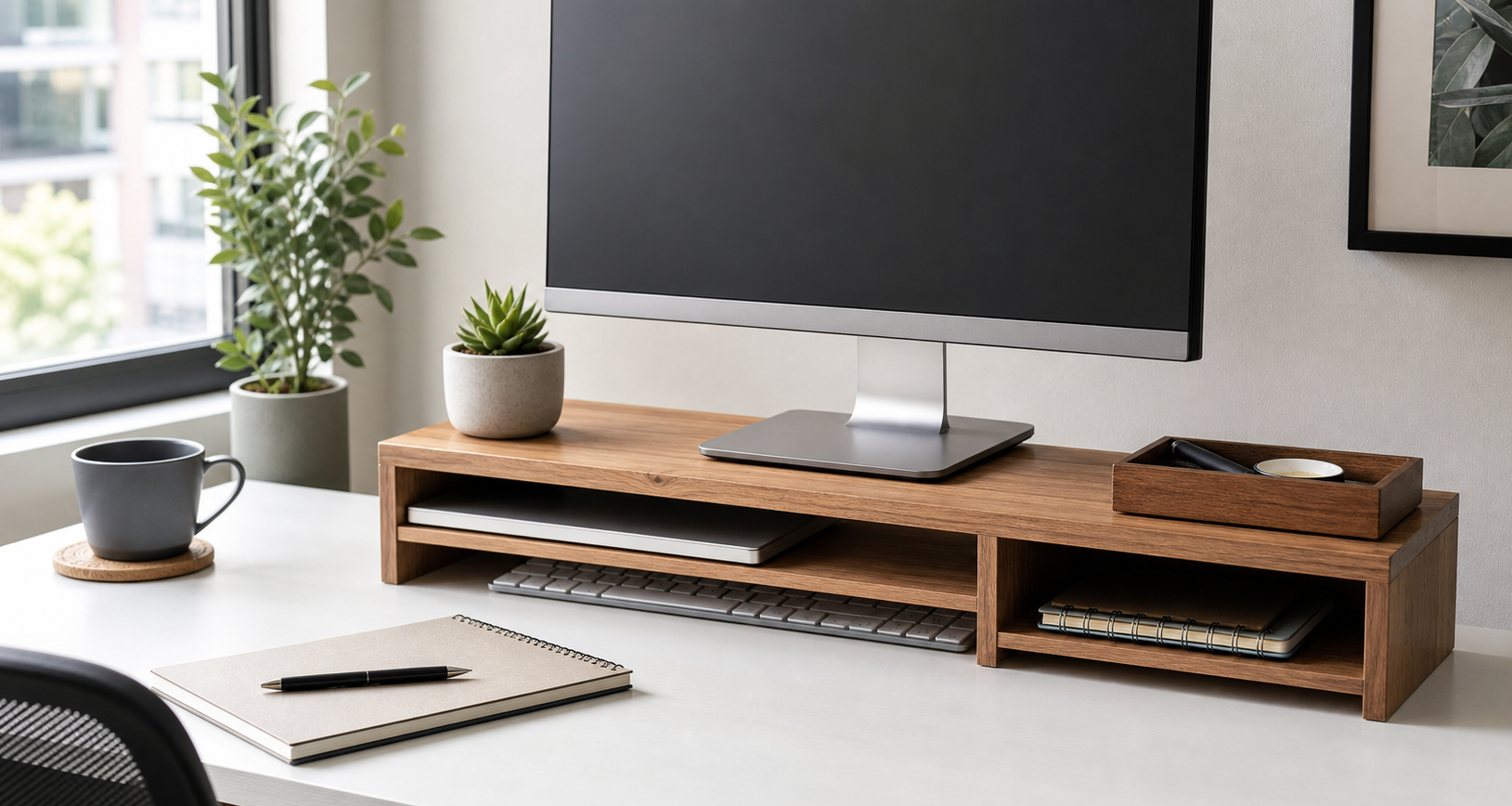
    1. Monitor stand with storage

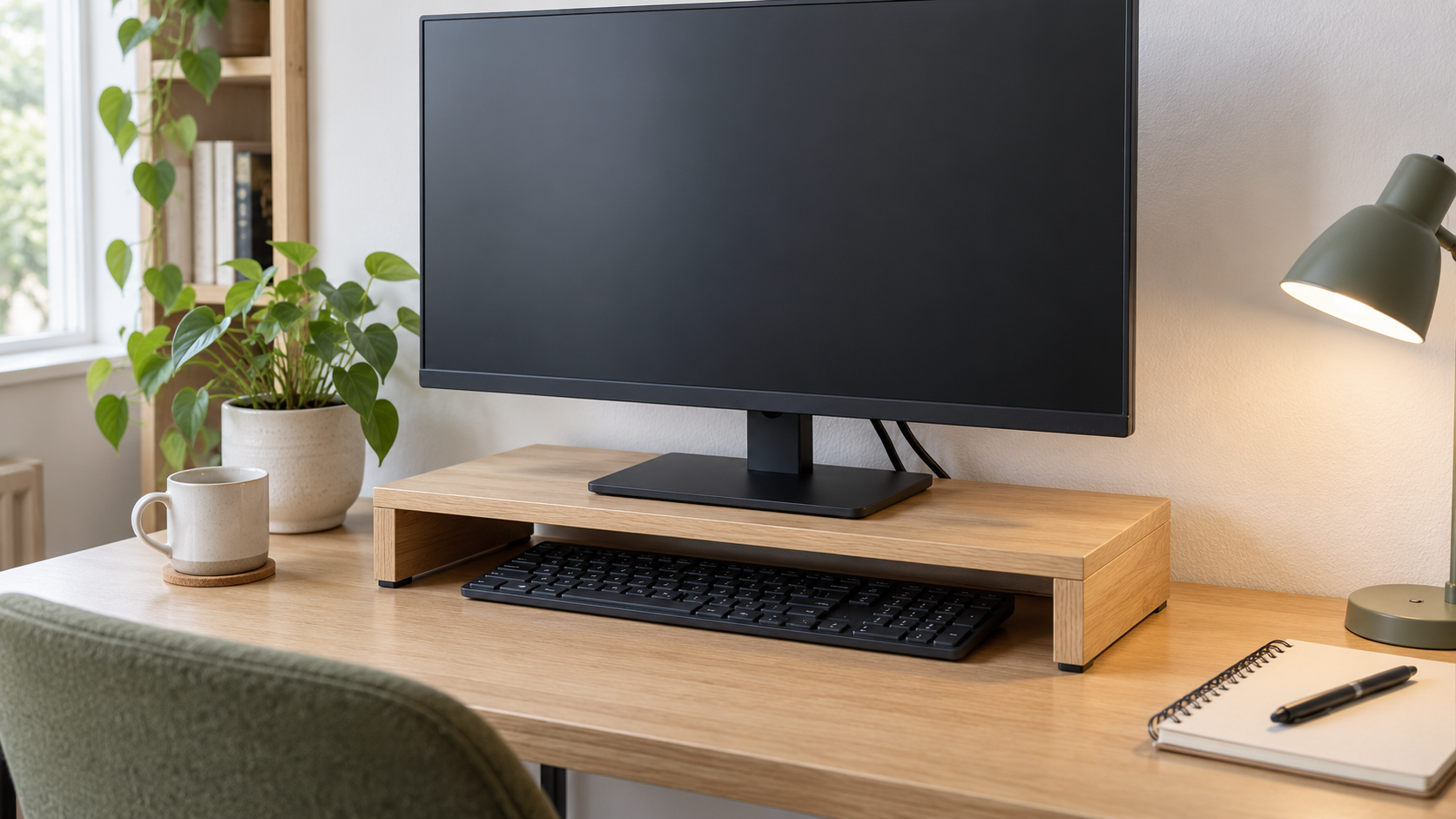
    A monitor stand with storage is one of the fastest upgrades for a small desk because it solves two problems at once: screen height and surface clutter. The right stand should lift your screen close to eye level while leaving space for a keyboard, notebook, or dock underneath.

    For small home offices, avoid oversized risers that steal too much width. Look for a stand with open space underneath, stable legs, and enough clearance for your keyboard. If you use a laptop as a second screen, pair the stand with a separate laptop riser or vertical laptop holder.

    Check monitor stands with storage on Amazon

    2. Under-desk cable tray

    If cables are the main reason your workspace feels chaotic, an under-desk cable tray should come before decorative organizers. A good tray holds the power strip and heavy cable loops below the desktop, so only short, intentional cables come up to your devices.

    For installation details, see our dedicated guide to the under desk cable management tray for small home offices. If you want the full cleanup workflow, use the cable management ideas for a cleaner desk setup guide as the step-by-step companion.

    Browse under-desk cable trays on Amazon

    3. Cable management box

    A cable box is best when your power strip must stay on the floor, a side table, or behind a cabinet. It hides the bulky part of the setup while still letting you access plugs when you need them. This works especially well for renters who do not want to drill into a desk.

    Choose a box with enough ventilation, side exits for cables, and a lid that is easy to lift. For floor setups, a heavier box is usually better because it stays in place when cables move. Read the focused guide: best cable management box for messy desk cords.

    Browse cable management boxes on Amazon

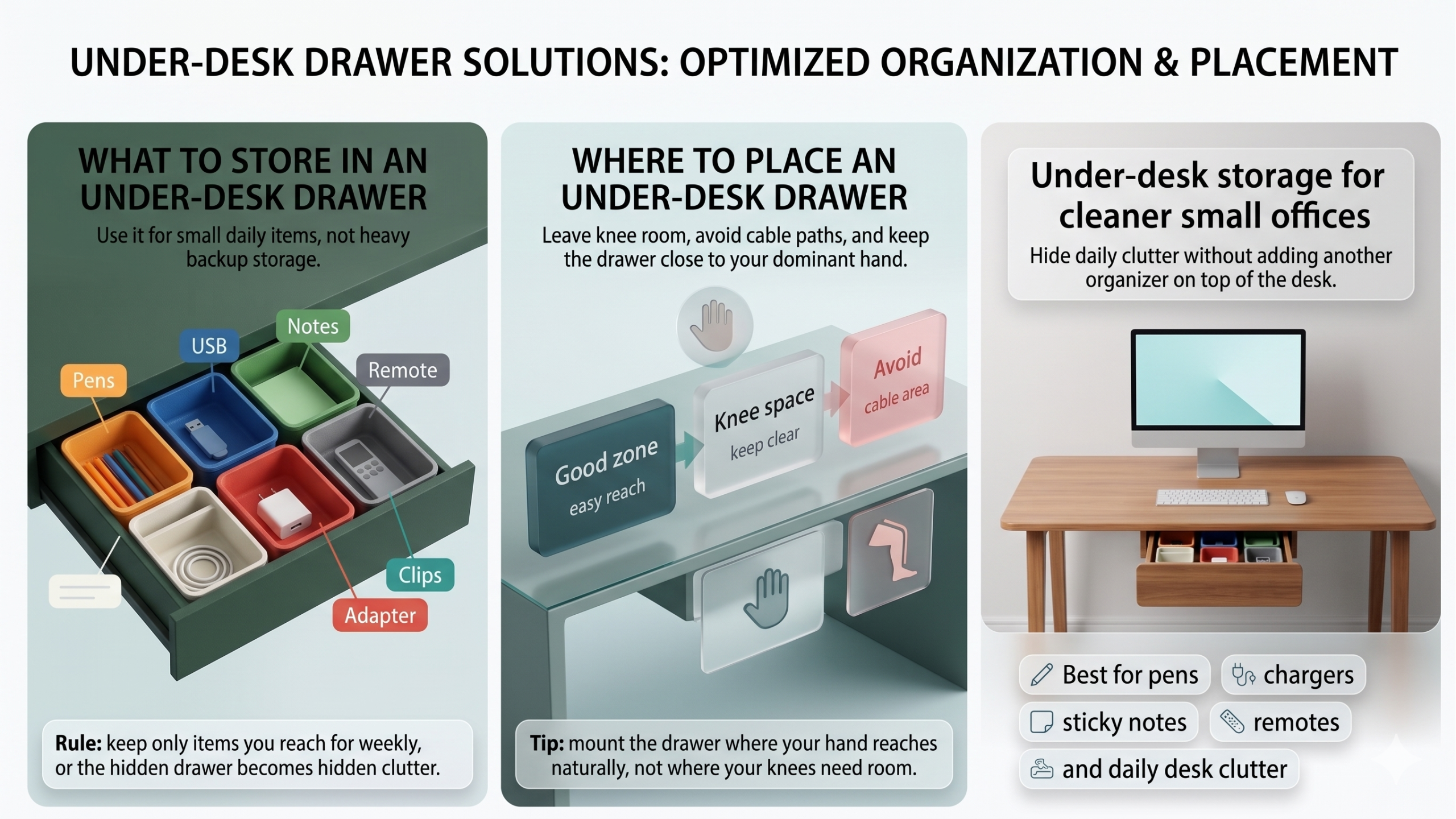
    4. Drawer organizer or desktop tray

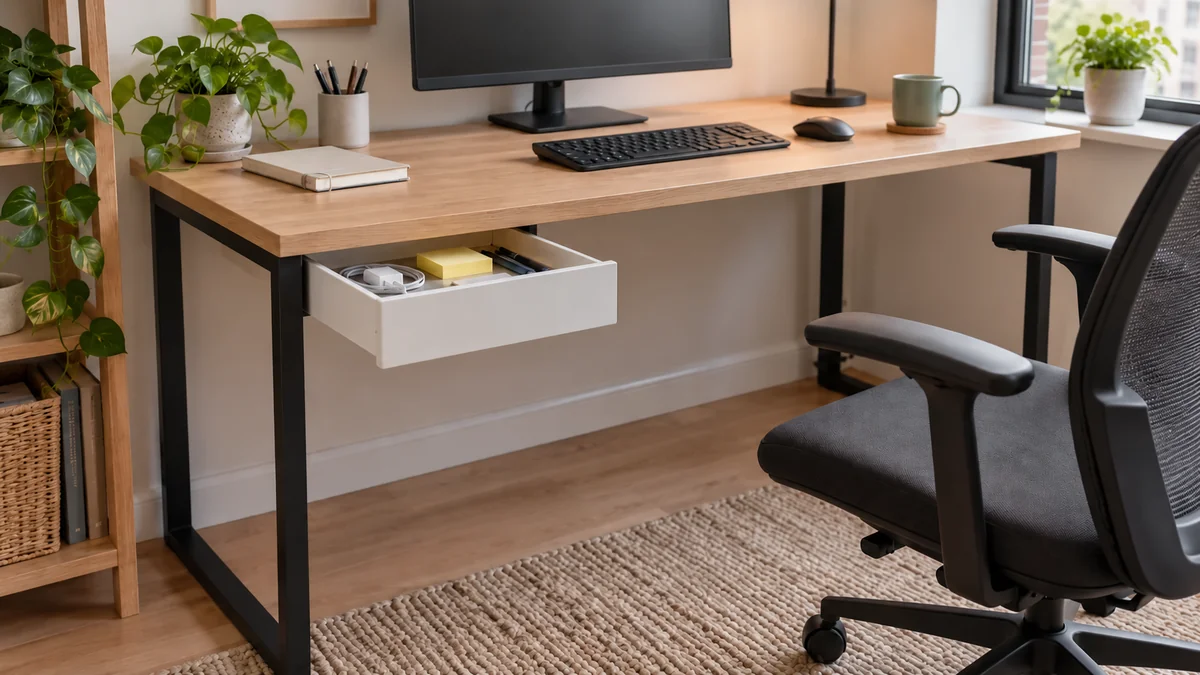
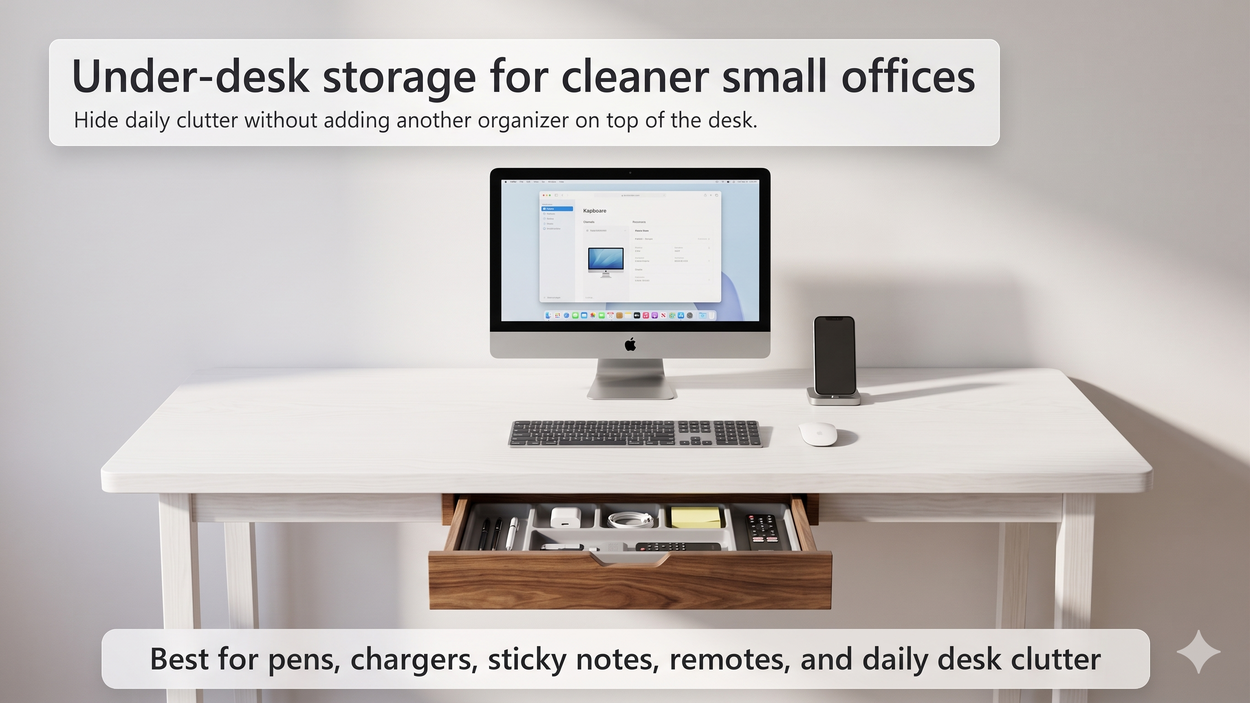
    Small loose items are the quiet source of desk clutter. A drawer organizer works well if your desk has drawers. If it does not, use one shallow desktop tray for pens, sticky notes, adapters, and small tools. The goal is not to hide everything. The goal is to give tiny items one home.

    Keep this category simple. One organizer is usually enough. If you need three trays to manage daily tools, the real problem is that too many things are living on the desk.

    Check desk drawer organizers on Amazon

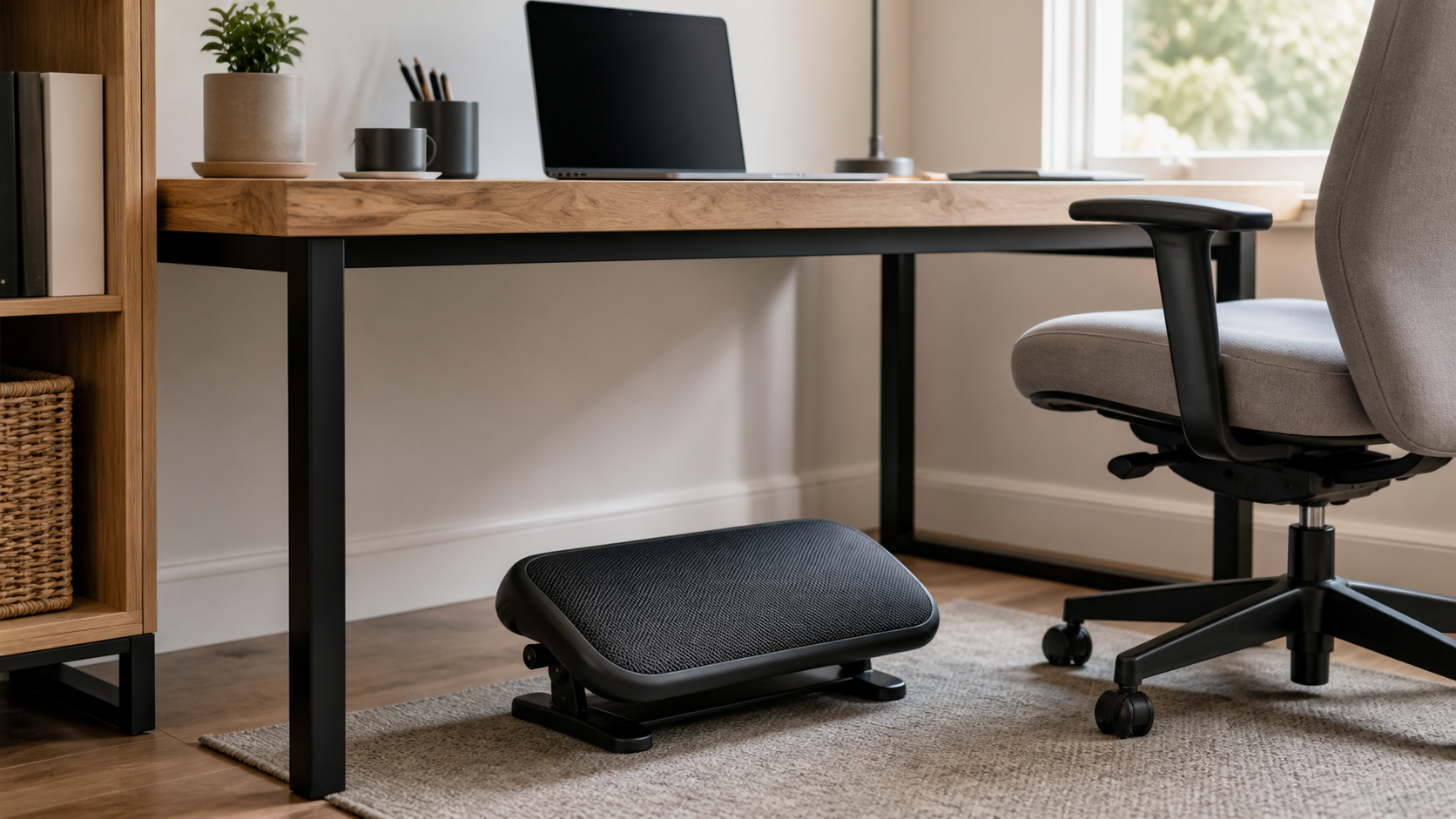
    5. Ergonomic foot rest

    A cleaner desk is useful, but comfort is what keeps the workspace usable. If your feet do not rest flat on the floor or your chair height is set for the desk rather than your body, a foot rest can reduce fidgeting and lower-back strain.

    For a deeper buying checklist, see our guide to the best under desk foot rest for lower back pain. If you also want light movement while seated, compare it with our guide to under desk ellipticals for seniors.

    Browse ergonomic foot rests on Amazon

    6. Desktop file sorter

    Paper clutter is different from accessory clutter because it often represents unfinished decisions. A vertical file sorter is better than a flat pile because it makes active paperwork visible without spreading it across the desk.

    Use three sections only: action, reference, and archive. If a file sorter grows beyond that, move long-term documents away from the desk and keep the work surface for current tasks.

    Check desktop file sorters on Amazon

    7. Compact light for evening work

    A small light can make a desk feel calmer at night, especially if your main room lighting is harsh. For shared bedrooms or small apartments, a rechargeable amber book light can be more practical than a full desk lamp.

    See our guide to the best rechargeable book light for reading in bed if you want a low-glare option that also works for notebooks, planners, and late-night reading.

    Browse rechargeable reading lights on Amazon

    How to choose without overbuying

    Before buying anything, take one photo of your desk at the end of a normal workday. The photo will show which problem is actually costing you attention. If the desktop is clear but the floor is messy, start with cable management. If the floor is clean but the desk is covered in small tools, start with a tray or drawer organizer. If the desk looks fine but your body feels tired, start with comfort.

    For a broader upgrade plan, read Top 10 Home Office and Smart Home Upgrades for 2026. Use that article when you are ready to move beyond organization into ergonomics, audio, smart lighting, and everyday automation.

    Common small-office organizing mistakes

    The most common mistake is buying storage before deciding what should stay on the desk. Storage products can hide clutter, but they cannot fix an unclear workflow. Before adding another container, decide which items are daily tools, which items are weekly tools, and which items should live somewhere else.

    The second mistake is solving cable clutter only on the desktop. A neat charging cable still creates visual noise if the power strip, wall plug, and extra cable length are messy below the desk. That is why the best setup usually combines a cable tray, a cable box, and a few reusable ties instead of relying on one product.

    The third mistake is ignoring comfort. A desk can look organized and still feel tiring. If your feet dangle, your monitor is low, or your lamp causes glare, you will keep shifting items around without solving the real problem. Good organization should make the desk easier to use, not just easier to photograph.

    Related home office guides

    Final recommendation

    If you only buy three desk organization products, make them a monitor stand with storage, an under-desk cable tray, and a simple drawer organizer or desktop tray. That combination handles the largest sources of clutter without turning your workspace into a storage project.