Disclosure: As an Amazon Associate I earn from qualifying purchases. This article contains one affiliate link, which may earn us a commission at no extra cost to you.
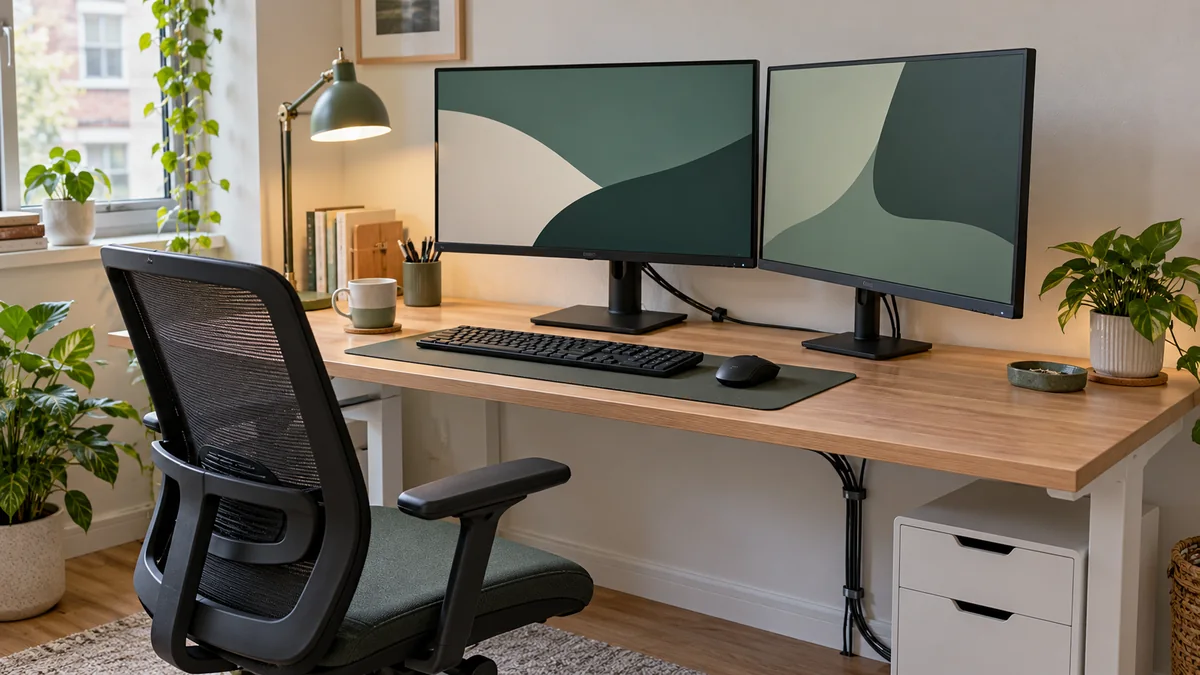
A dual monitor setup can fit on a small desk when you plan the total width, viewing distance, stand footprint, mounting clearance, and cable route before buying hardware. Put the screen you use most directly in front of you. Place the second screen immediately beside it, or center both screens only when you divide your time evenly. The goal is useful workspace without forcing the keyboard forward or making you twist toward one display all day.
Two monitors do not automatically require two large horizontal screens. A 24-inch pair, a main screen plus a smaller side display, or one vertical monitor may fit better than two identical 27-inch panels. Measure the usable desk rather than copying a setup designed for a deeper room.
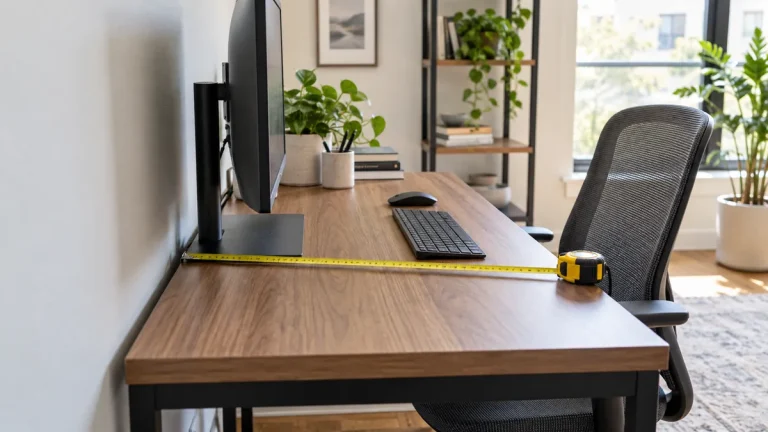
Measure Five Things Before Choosing the Monitors
- Usable desk width: measure between walls, shelves, lamps, and other fixed objects.
- Usable desk depth: exclude the space taken by a wall gap, cable channel, or deep monitor base.
- Eye-to-screen distance: measure from the normal seated position, not the front desk edge.
- Rear and underside clearance: check for a clamp, frame rail, apron, drawer, or cable tray.
- Computer outputs: identify the ports, supported resolutions, refresh rates, and docking limitations.
OSHA’s workstation checklist says the monitor should be far enough away to read without leaning and generally describes about 18 to 20 inches, or arm’s length, as a starting point. It also says the top of the screen should be at or below eye level. These are ergonomic starting points, not a promise that one desk depth suits every person or display.
Estimate the Real Width of a Two-Screen Layout
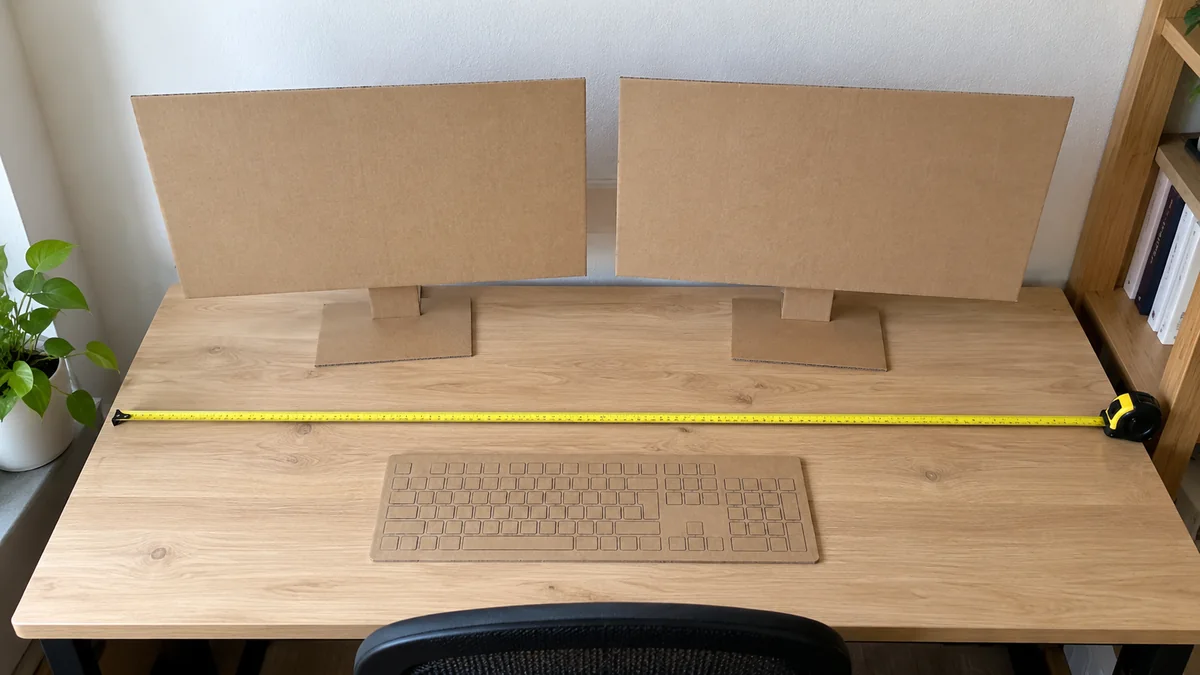
Manufacturer screen size is measured diagonally and does not include the bezel or the angle between screens. Use the product’s physical width, then place two rectangles of that width on the desk with cardboard or painter’s tape. Angle the outer edges slightly inward and sit in the normal chair.
| Layout | Space advantage | Best for | Main tradeoff |
|---|---|---|---|
| Two 24-inch screens | Moderate overall width | General office work | Still needs careful stand placement |
| 27-inch main plus smaller side screen | Keeps priority on one display | Editing, research, communication | Mismatched scaling may need adjustment |
| One landscape plus one portrait | Reduces horizontal spread | Documents, code, chat | Stand must support rotation |
| Laptop plus external display | Uses equipment you already own | Hybrid and portable work | Laptop height needs correction |
If you have not chosen the panels, compare the tradeoffs in our monitor size guide for small desks. The best combination is the smallest one that shows the work clearly at your normal viewing distance.
Choose the Correct Centering Strategy
OSHA recommends putting the primary monitor directly in front and the other directly beside it. When time is divided evenly, place the monitors next to each other within a comfortable angle that requires minimal head movement.
For a dominant main screen, center that screen on the keyboard and chair. Place the secondary screen beside it and turn it inward. For a true 50/50 workflow, center the meeting point between displays with both screens equally angled. Do not put the seam in front merely for symmetry if you spend most of the day looking to one side.
Decide Between Original Stands, a Riser, and Monitor Arms
Original monitor stands
They are easy to install and do not depend on desk-edge strength. The drawback is two separate footprints, which may consume the keyboard and notebook area. Measure each base at its widest and deepest points.
A wide monitor riser
A strong, suitably rated riser can lift two smaller monitors and create storage underneath. Confirm the total weight, usable top width, surface grip, and height. Do not place monitor feet close to an unsupported edge.
Single or dual monitor arms
Arms can free surface area, but they move the load to a clamp or grommet point. Confirm desk thickness, material, edge shape, underside obstructions, arm weight rating, VESA pattern, monitor weight, and rear wall clearance. A dual arm is not automatically better than two single arms; one central clamp concentrates the load and may limit independent placement.
Read the compatibility steps in our monitor-arm fit checklist and compare the formats in the monitor arm vs monitor stand guide.
Check Computer, Dock, and Cable Compatibility
Count the displays the computer can actually support, then identify the required resolution and refresh rate for each. A laptop may have several ports but still support fewer external displays than expected. Some USB-C hubs mirror rather than extend displays on certain systems, and adapters do not override the computer’s graphics limits.
Microsoft recommends confirming cable connections and Windows updates before adjusting displays. In Windows, use Settings > System > Display to identify, detect, and arrange the screens. Choose Extend when you want one desktop across both displays. Drag the numbered displays so their virtual positions match the physical layout, then test pointer movement across the seam.
Plan the Cable Route Before Attaching the Mount
Two monitors add at least two power runs and one or more video cables. Route cables loosely while the displays are at their highest, lowest, leftmost, and rightmost positions. Leave a small service loop near each connection so an arm can move without pulling the plug.
Keep cables out of the clamp contact area and away from sharp metal edges. Mounting an arm first and discovering that it blocks the cable tray is a common small-desk failure. Map the full route with our cable management basics before fastening clips or ties.
Set Height, Scale, and Brightness
Align the screens so the pointer crosses at a predictable height. Identical models are easier to match, but mixed monitors can still work when the active areas line up. Keep the primary task near the center of the main screen and avoid placing frequently read content at the far outside edge.
Set each monitor to its recommended resolution and adjust operating-system scaling so text appears comfortable rather than forcing you to lean forward. Match brightness by eye under the normal room lighting. If one display is used in portrait orientation, rotate it physically only when the stand or arm permits rotation and the cables remain relaxed.
Small-Desk Failure Checks
- The keyboard is pushed forward because monitor bases are too deep.
- The main screen sits off-center for the sake of a symmetrical pair.
- The arm collides with a wall when the screen is moved.
- The clamp overlaps a frame rail, drawer, or cable tray.
- The laptop or dock does not support the intended two-screen mode.
- Short cables tighten when an arm is raised or rotated.
- The screen edges extend into a doorway or narrow walking path.
Setup Sequence
- Measure the desk, seated eye position, wall gap, and underside.
- Mock up the physical monitor widths and choose the centering strategy.
- Verify computer outputs, dock support, cables, VESA patterns, and weights.
- Install stands or mounts according to their manuals.
- Connect one monitor at a time and confirm it works.
- Arrange and extend the displays in the operating system.
- Set height, angle, resolution, scaling, and brightness.
- Route cables and test every allowed monitor movement again.
Final Recommendation
For many small desks, start with two 24-inch screens or one main monitor and a smaller side display. Keep the primary screen centered, use portrait orientation only when it serves the work, and choose arms only after confirming desk and monitor compatibility. The cleanest-looking hardware is not useful if it shortens viewing distance or overloads an unsuitable desk edge.
After confirming monitor weight, VESA pattern, desk thickness, clamp clearance, arm reach, and wall space, compare dual monitor mounts for small desks on Amazon. Verify the current manufacturer’s specifications, included hardware, desk-material restrictions, warranty, and return terms for the exact listing.
Leave a Reply